The “IPTV Smarters failed to authorize” error is one of the most common issues users face when trying to sign in to their IPTV service. Whether you’re using the Smarters app on a Smart TV, Android device, Firestick, or iOS, this problem usually means the app cannot verify your account with the IPTV provider’s server. The good news is that this issue is usually simple to diagnose and fix. In this guide, we’ll break down the causes and the most effective solutions to get Smarters working again.
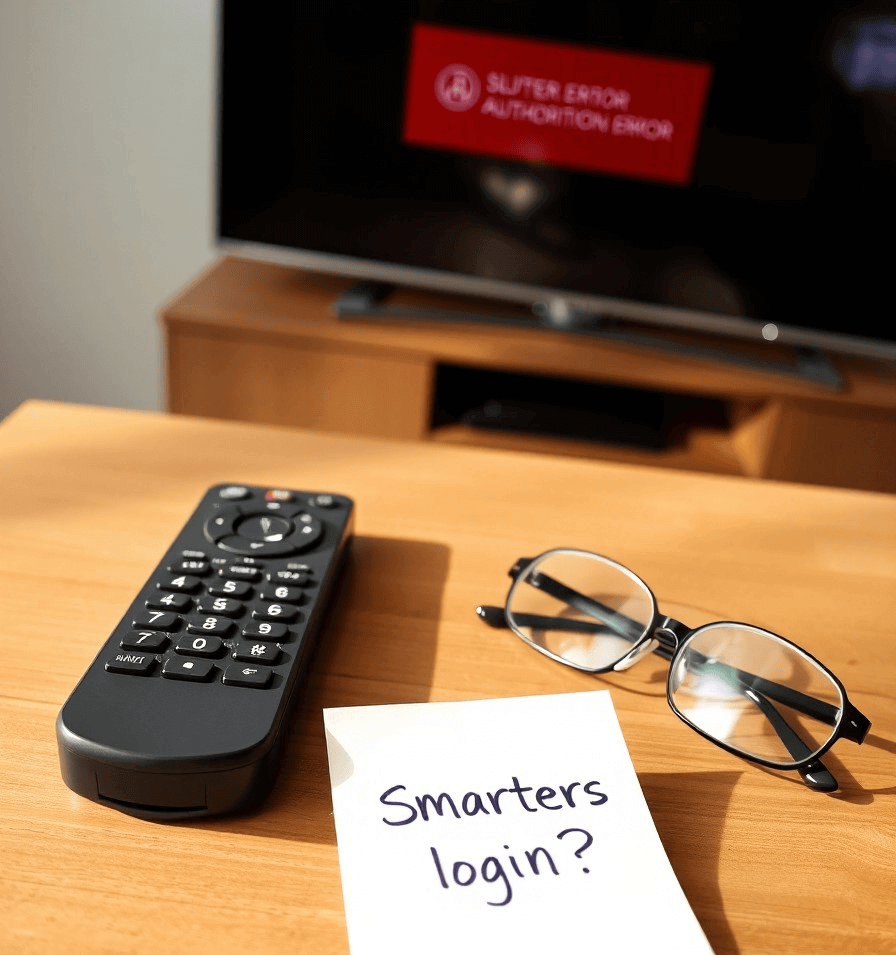
🔍 Why Does “IPTV Smarters Failed to Authorize” Happen?
Several things can trigger this error message:
1. Incorrect Login Details
The most common cause is entering the wrong username, password, or portal URL. IPTV Smarters requires your provider’s exact credentials. Even one incorrect character can block authorization. If you recently copied and pasted the URL, make sure no hidden spaces were added.
2. Provider Server Issues
Sometimes the Smarters app is working perfectly, but the IPTV provider’s server is temporarily offline or under maintenance. When this happens, authorization fails because the app cannot reach the server.
3. Subscription Expired
If your IPTV subscription has ended, the server will deny authorization. Some providers disable accounts instantly, while others give a short grace period.
4. Weak or Unstable Internet Connection
If your network drops while the app is trying to connect, it may produce the “failed to authorize” error. IPTV relies on stable bandwidth, especially during login.
5. App Cache or Corrupted Data
Over time, app data can become corrupted on Smart TVs, Firestick, or Android devices. This stops the Smarters app from communicating properly with the server.
🛠️ How to Fix “IPTV Smarters Failed to Authorize”
1. Re-enter Your Login Credentials
Delete your current profile inside Smarters and add a new one. Carefully enter the username, password, and portal URL exactly as provided. Avoid extra spaces or uppercase errors.
2. Verify the Portal URL
The portal or M3U link must match your provider’s exact format. Some providers update URLs; contact them if unsure.
3. Check Your Subscription Status
Log in to your provider’s dashboard or contact support to confirm your account is still active.
4. Restart Your Router and Device
A simple restart can refresh network communication and fix temporary authorization issues.
5. Clear Cache or Reinstall Smarters
If you’re using Android or Firestick, clear data/cache for IPTV Smarters. On Smart TVs, uninstall and reinstall the app to reset corrupted files.
6. Try Using a VPN (If Your ISP Blocks IPTV)
Some ISPs throttle or block IPTV servers. Using a VPN can help the Smarters app authorize successfully. Choose a location close to your region for best performance.
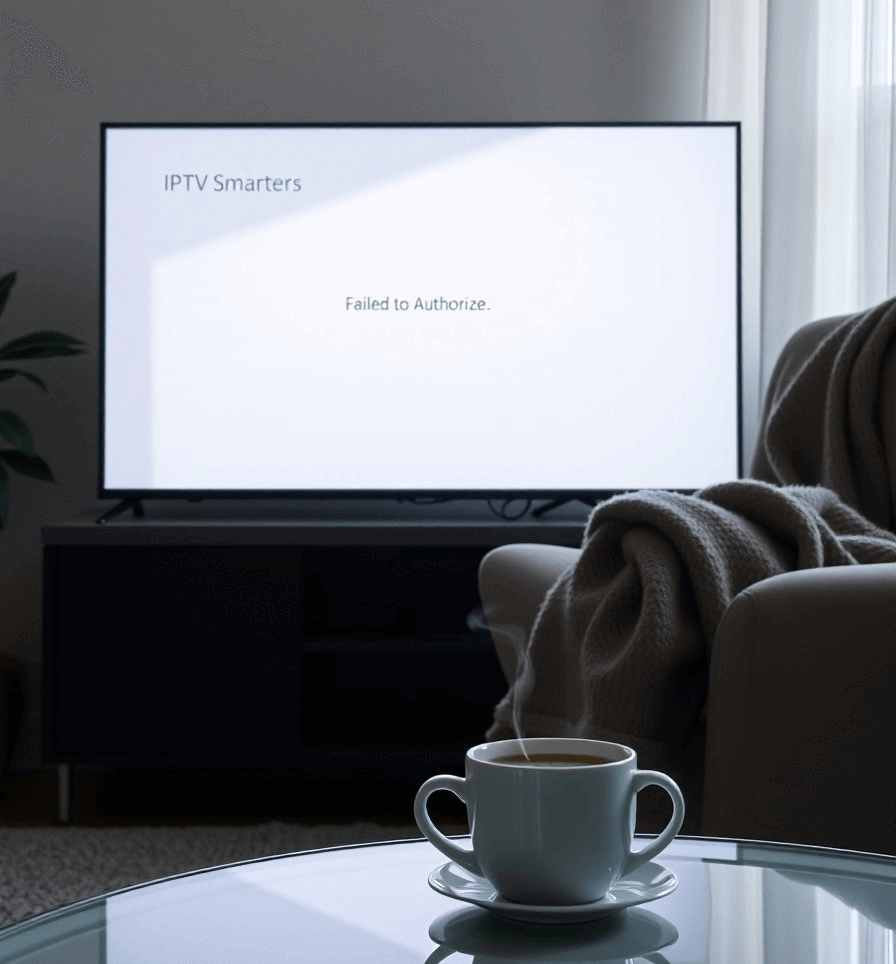
🧪 When to Contact Your IPTV Provider
If you’ve tried all the steps above and the “iptv smarters failed to authorize” error still appears, the issue may be server-side. Provide your provider with your username, device type, and screenshot of the error. They can often fix your account or refresh your line.
🟦 Final Thoughts
The Smarters app is one of the most reliable IPTV players available, but authorization errors can be frustrating. Fortunately, most problems come from simple credential mistakes, temporary server issues, or device data conflicts. By following the steps in this guide, you should be able to restore access quickly and enjoy smooth IPTV streaming again.
⭐ How to Fix “IPTV Smarters Failed to Authorize”: Full Guide to Causes & Solutions
The “IPTV Smarters failed to authorize” error is one of the most frequent connection problems IPTV users experience across multiple devices, including Smart TVs, Android phones, Firestick, Windows, and iOS. When this message appears, it simply means the app is unable to validate your login information with your IPTV provider’s server. Although the error may seem alarming at first, it is almost always caused by simple issues that can be fixed quickly. Understanding why this happens—and how to troubleshoot it—can save you time, frustration, and unnecessary support tickets. This guide breaks down everything you need to know about resolving the issue and getting your IPTV service running smoothly again.
🔍 Why “IPTV Smarters Failed to Authorize” Occurs
Several factors can trigger this error, and identifying the root cause is the first step toward fixing it.
1. Incorrect Login Information
The most common reason is entering the wrong portal URL, username, or password. IPTV services are sensitive to precise formatting, meaning even a single misplaced character, space, or symbol can prevent authorization. Many users copy and paste their M3U or portal link, unknowingly including an extra space or invalid formatting.
2. Issues With the Provider’s Server
If the IPTV provider’s server is undergoing maintenance, facing downtime, or experiencing overload, Smarters won’t be able to connect. In these cases, the issue is not with the app or your device—it’s backend-related.
3. Expired or Blocked Subscription
If your IPTV subscription has expired or your account has been temporarily suspended, the server will automatically deny authorization. Some providers renew subscriptions instantly, while others require manual confirmation.
4. Network Problems or Weak Internet Stability
A weak or unstable internet connection can interrupt the communication between the Smarters app and the server. IPTV requires consistent bandwidth, and even small drops can cause login interruptions.
5. Corrupted Application Data
Cached files, outdated data, or installation errors can prevent IPTV Smarters from functioning properly. Over time, corrupted data becomes more likely, especially for Firestick and Android users.
🛠️ Detailed Fixes for “IPTV Smarters Failed to Authorize”
1. Re-enter and Double-Check Your Credentials
Delete the existing profile and create a new one. Type everything manually instead of pasting. Make sure your portal URL matches exactly what your IPTV provider sent.
2. Verify the Portal or Playlist URL
Some providers update links without notifying all users. If your URL is outdated, the app cannot connect. Contact your provider to confirm your current portal.
3. Check if Your Subscription Is Active
Log in to your IPTV provider’s customer portal or contact support to confirm the status of your account.
4. Restart Your Internet and Device
Power-cycle your router and restart your device. This clears temporary connection issues that often cause authorization failures.
5. Clear Application Cache or Reinstall Smarters
On Android and Firestick, go to settings and clear cache/data.
On Smart TVs, uninstall and reinstall IPTV Smarters to refresh the app completely.
6. Try Using a VPN
Some internet service providers block IPTV servers intentionally. Using a VPN can bypass the restriction and allow successful authorization. Choose a nearby location to avoid slow speeds.
🧪 When You Should Contact Your IPTV Provider
If none of the methods above solve the problem, it’s likely an issue on the provider’s end—such as a blocked line, server problem, or account mismatch. Send them:
Your username
Your device type
A screenshot of the error
Most providers can refresh your line or reauthorize your account quickly.
🟦 Final Thoughts
The “IPTV Smarters failed to authorize” error may be frustrating, but in most cases, it’s caused by simple issues like incorrect login data, expired subscriptions, or internet instability. With the troubleshooting steps above, you can quickly identify the cause and resolve the problem without hassle. IPTV Smarters remains one of the most powerful and user-friendly IPTV players—and once the authorization issue is fixed, you’ll be back to enjoying smooth, reliable streaming in no time.